 TMC WorkspaceThe professional workspace for school professionals · EDXSA
School workspaceSchool Level · Awaiting authorisation
Protected School LevelOpen School Workspace ↗
SCHOOL MANAGEMENT · EXECUTIVE OVERVIEW
School Overview
One leadership workspace for school setup, people, teaching, operations and resources. School-owned figures will appear only when their authorised services are connected.
Checking School Level permissions.
Leadership action centre
These workstreams follow the desktop School Level requirements. They are not live approval queues yet.
1
School readiness & setupIdentity, grades, subjects, classes and timetable arrangements
2
Staff & governed accessMembership, invitations, authorised roles and audit trail
3
Teaching & operational oversightCurriculum coverage, registers, performance, LTSM and stationery
Available work areas
Links appear only for permitted modules in the active server-verified workspace.
MY SCHOOL · PROFESSIONAL MEMBERSHIP
My School Profile
View your school identity, membership, recorded appointment details and permissions. Personal certificates and optional professional information remain private unless you share individual records.
Select this tab to load your live School Workspace profile.
School identity
Official DBE and operational school information, where available.
My appointment & affiliation
Distinguishes self-registered employment details from formally authorised school roles.
Membership & access
Server-verified School Level membership and subscribed organisation.
Authorised responsibilities
Only server-issued grants determine access to operational modules and QMS management.
Professional development & sharing
Your certificates, qualifications, CPTD activity, workshops and QMS evidence live in your private Professional Evidence Vault—not the school's general Library.
Upload certificates once, choose which evidence to share with this school, and submit workshops for authorised management confirmation. Sharing does not automatically verify attendance or grant access to your entire professional history.
SCHOOL MANAGEMENT
School Setup
Explore the authorised management areas.
School Management
The full management workflow is being connected to approved school endpoints.
Authority & data protection
Permissions come from the authoritative School Level guard. A visible control does not grant server access, and account-level data is never merged automatically.
Awaiting scoped module services.
School Setup is awaiting the verified institution link and staff permissions.
School Setup → Manage
School-owned setup follows the same classes, learners and import workflow used in Individual Setup → Manage, with independent server-side school permissions.
Delegate School Administration
For verified principals or authorised personnel managers. Approve an eligible Administrative Clerk to add and correct school learner and guardian records. All decisions require a reason and are checked on the server.
Only staff with a verified school membership and eligible administrative registration can be approved.
Learners & class management · Setup / Manage
Verified school administration access required.
School learner directory
Search by learner name or admission number. Only records owned by your verified school are returned.
—
Add school learner
Create or correct an institution-owned learner record. Admission number is required for duplicate protection.
Parents and guardians
Choose a learner first. Maintain authorised contacts and a single primary contact.
No learner selected.
Class allocation
Enrol a selected learner in an existing class belonging to this school and academic year.
Creating school class structures and educator assignments requires separately audited school configuration services. Existing school classes can be selected here.
School structure · Create register / subject classes
Reuse the Manage workflow. Each class belongs to this verified school and academic year. Grade and class names must match your real school records.
Creates school-owned classes. Existing teacher/subject allocations remain separately authorised.
Data quality · Learner profile readiness
The school directory and profile must be completed progressively. No medical information is collected here.
Select a learner to inspect their admission and guardian information.
Learner profile · Admission, family & emergency information
School private recordsFirst select a learner from the directory and save their core identity above. Parent names and contacts are saved separately in Parents & Guardians. Medical/support records require different permissions.
Choose a learner from the directory first. Profiles are school-owned, never stored in the clerk's Individual Workspace.
Smart learner import · School Workspace
Review → Validate → Confirm → SaveReuse the Individual Setup / Manage spreadsheet engine: CSV, TSV, XLS and XLSX are parsed locally, including multiple worksheets. Learner, admission, birth-date, grade, parent contact and nonmedical profile columns can be mapped. Nothing is saved until explicitly approved. Correct names in the source spreadsheet; you can edit admissions, DOB, grade and guardian names in preview.
XLS/XLSX/XLSM · Browser-localCSV/TSV · Browser-local100 approved records per atomic batchSchool-only duplicate verification
Photo/PDF extraction is not routed through the Individual Workspace's AI endpoint. It needs a separate school-authorised extraction service before being enabled here.
| Approve | Row | Learner | Admission | Birth date | Grade | Guardian | School duplicate check |
|---|
Choose an Excel, CSV or TSV file. Processing remains local until you approve and save the records to your school.
School data protection
Only authorised staff with a verified school link and explicit School Setup edit permission may modify school-owned learners and guardians. Individual Workspace records remain separate. All writes are school-scoped and audited.
TMC · SCHOOL LEVEL · VERIFIED SESSION
Your School Level workspace
Your school and individual access are separated. TMC is checking the permissions assigned to this membership.
Account classificationAuthorised institutionPermission status
School data remains protected until your school membership grants the necessary module and record permissions.
Your authorised areas
Only server-verified permissions unlock protected modulesMY WORK · PERSONAL PROFESSIONAL WORKSPACE
Your professional workspace
Your private professional record belongs to you. School operations are available separately through My School if your membership is approved.
YOUR TMC WEB WORKSPACE
View my profile ↗Welcome to TMC
Manage classes and import reviewed learners in your TMC workspace; explore learner profiles and assignments in Learners.
LIVE · RESOURCES & LTSM
Your classroom resources.
Desktop and Web, together.
Manage textbooks, classroom stock, physical copies, learner issuing, retrieval and condition accountability from the same Individual TMC records used by Desktop.
Your registered schoolLoading school…Checking authoritative registration profile.
My TMC areas
Connected account · modules being integrated📚Desktop + Web
Resources & LTSM
Textbooks, classroom inventory, physical copies, learner allocations, returns and accountability.
♙Connecting
Learners
My learner directory, profiles and individual class assignments.
✓Daily + Period
Classroom
Open Daily Register, Period Register, recovery and attendance analysis; learner Journal / Support is grouped with the same classroom workflow.
▥Desktop parity
Smart Timetable
Base and weekly timetable, current/next activity, workload, calendar and Term Plan.
✎Private workspace
My Day
Daily diary, quick notes, checklists, pinned reminders and timetable-aware reflection.
✉Official work email
Communications
Compose professional work email, use templates, send meeting invites, attach evidence and build communication reports.
▧Desktop + Cloud
TMC Library
Teaching documents, indexed metadata, assessments and private Web cloud backup while Desktop remains metadata-only.
▦Profile connected
My professional profile
Manage your professional identity and personal development record. School permissions are verified separately.
Your registered account
This information is loaded from your TMC registration profile, not copied from the browser.
Educator—
Account—
Role—
School—
School access
Identifying your school does not automatically grant School Premium or access to other people's records.
ⓘ
School affiliation: checking…
School membership and module permissions must be verified by TMC before shared learner or LTSM records are opened.
School membership and module permissions must be verified by TMC before shared learner or LTSM records are opened.
TMC · CENTRAL REPORTING
Reports
One place for official class lists, working sheets, registers, evidence lists and school administration reports. Module-specific reports remain available inside their own TMC areas as well.
Open Reports to load your classes and reporting catalogue.
Class List Studio
Create official lists from Register Classes, Subject / Period Classes and other teaching groups. Official PDFs follow the TMC document standard, with editable Excel, CSV and Word exports generated from the same class/report model.
Build a class list
Choose the source class and list type. Data TMC already has is filled automatically; working-sheet fields remain blank for educator completion.
Class preview
Choose a class to preview the learners that will appear in the report.
No class loaded yet.
Report catalogue
Browse the full TMC school-list catalogue. Selecting any item loads it into Class List Studio. Module-linked reports can still be produced from their source tabs for richer module-specific detail.
INDIVIDUAL TMC · RESOURCES & LTSM
Resources & LTSM
Manage the textbooks, teaching resources, classroom assets and physical copies you are personally responsible for. This workspace uses the same TMC_RESOURCES module as Desktop TMC and keeps School Premium stock separate.
Open Resources & LTSM to load your Desktop/Web resource records.
🔒 Individual ownershipOnly resources explicitly owned by your Individual TMC workspace are shown or written here. School-owned inventory remains with School Premium.
Desktop sync · checkingTMC · DEMONSTRATION
Scan textbooks with your device
Use the existing TMC 1F multi-learner QR test sheet. This is a working camera demonstration within your signed-in TMC workspace. The demo never modifies actual school inventory, issues, learner records or annual reports.
● Camera-based QR scanning20 official 1F test casesNo second loginOne scanner · simulated issue, returns, conditions & stocktake
School textbook history · read only
Scan a genuine activated TMC QR sticker using the existing camera below, or enter its exact full QR payload. The verified School's LTSM identification permission is required. No personal learner history or finance information is disclosed.
Camera ready to identify a School-owned textbook. No stock or learner record will be changed.
Recorded non-identifying events
Live teacher issue & return · School records
Use the same real school QR camera above. First scan a genuine activated TMC book; then choose a learner in your assigned class or its open issue. Every successful action writes a real School custody and condition event. The 1F test-pack barcodes cannot be used here.
Read-only until server-confirmed School, LTSM year, assigned class and explicit custody-operator checks pass.
Teacher requests for late deliveries and shortages remain above the Scanner. Do not use live issue to represent a book that has not physically arrived. Subject-class memberships that cannot be matched unambiguously to one current register enrolment require School reconciliation.
Book history covers the QR-linked asset registry only. A missing School-copy mapping does not imply that another registry's records have been reconciled. Signed-QR validation for operational transactions remains with the existing LTSM mobile gateway.
Teacher textbook needs & exceptional cases
REAL SCHOOL REQUESTS · Unlike the training QR pack, these are saved to your School Workspace for the selected academic year. Submit a need when books arrive late, a learner joins, subjects change, or a replacement is required. Submitting does not issue, receive or return a physical book.
No backdating: record a need now, and use the real custody writer only when the book is physically issued.
Checking authorised School access…
Requests are planning and exception records, never evidence of stock receipt, learner custody, payment, loss liability or QR authenticity. School inventory and the 1F training simulator remain separate.
Get started · Your two-step scanner demonstration
Real QR scanning · Five learners · 18 books · Two access testsDownload the official QR test packSave or print the image before activating your camera.
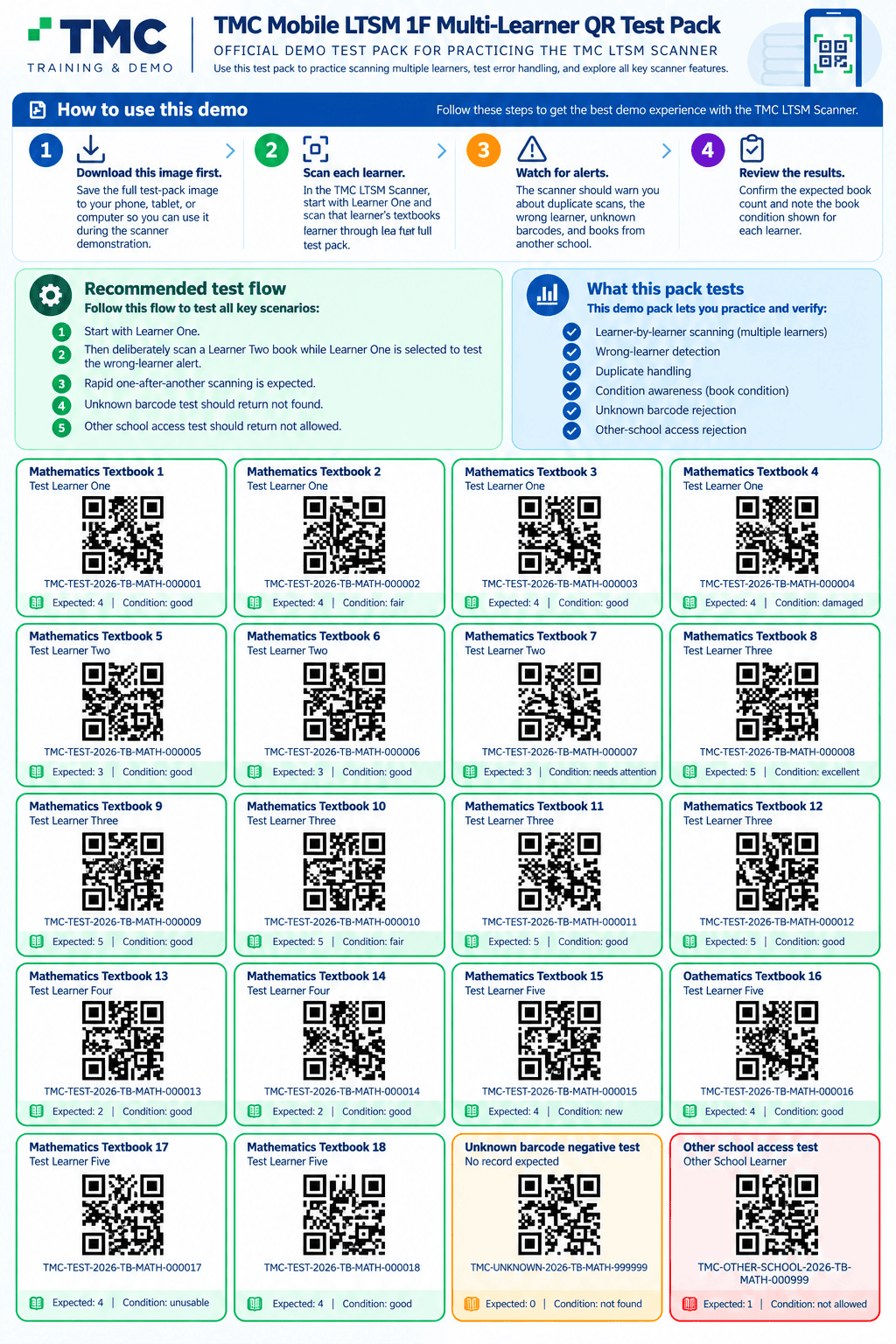
Download the full-resolution test sheet with all 20 QR labels. Display it on another device or print it so your phone can scan the individual labels.
Checking the published test-pack image…
Scan each learner’s textbooksUse the real camera in the TMC workspace below.
- 1Choose Test Learner One and select the scanning operation.
- 2Click Start camera, allow permission and scan books 1–4 in succession.
- 3Review the count, alerts and conditions. Click Review learner when ready.
- 4Move through Learners Two to Five, then explore the special negative-test labels.
Try these checks too: duplicate scan; wrong learner (book 5 with Learner One selected); unknown barcode; other-school denial. Try photographing damage on book 4, book 7 or book 17 in the Condition & Photo Evidence panel. All results are simulated safely.
✓ Wrong-learner warning✓ Duplicate detection✓ Condition flags✓ Consecutive scans✓ Unknown code✓ Other-school restriction✓ Damage photo evidence
ONE TRAINING WORKFLOW · NO SCHOOL WRITES. The 18 test-pack books initially belong to their pictured test learners. Choose Retrieve textbooks to simulate collecting them, then Issue textbooks to simulate reissuing. The same scan history, learner counts and photo-evidence controls are reused. Your real Committee position and Supabase data are unchanged.
Demo ready. Select a test learner, then activate the camera.
Current learner check
Test Learner One
4Expected
0Counted
4Remaining
0Attention
Most recent barcodeNo barcode scanned yet
Simulated textbook custody & stocktake18 test books · same QR test pack
18With test learners
0Returned / available
0 / 0Issues / returns this demo
0Condition flags
0 / 18Stocktake scanned
18Stocktake remaining
Training stocktake 1 open. Select Stock count to begin counting the 18 test-pack books.
Condition & review
No review recorded yet.
The scanning operation above controls the demo transaction. Repeated scans of the same book in one operation are rejected; selecting another operation permits the next step in the custody cycle.
All changes on this page are simulated. Real School Level issue/return and condition transactions require verified school authorisation.
📷 Textbook condition & photographic evidence
Photograph a torn cover, missing pages, water damage or another concern. Photos link to the scanned demo textbook.
No textbook selectedScan a book belonging to your selected test learner to attach evidence.
Start by scanning a test book, then take or upload photos of its condition.
Demonstration: saved photos remain in this browser on this device (if browser storage is available). The downloadable evidence report is yours to retain. Nothing is uploaded to Supabase, shared with other devices, or added to a live learner/school record. Use test material only.
Scan history
SCHOOL LEVEL · STATIONERY & SUPPLIES
Stationery & Supplies
Track everything a school issues to learners — from pens and books to calculators and instrument sets. School inventory, issue history, loans and returns remain separate from LTSM and individual resources.
Every school issue is accountable
Consumables remain permanently visible in the learner issue ledger. Returnable tools generate a loan and return trail. No school stock can be created in an Individual workspace.
Open Stationery & Supplies to verify authorised School Level inventory.
INDIVIDUAL TMC · MANAGE
Verifying account…Manage classes & bulk registration
Create register and subject/period classes, view all your classes, register learners and import reviewed files. Records are saved in your authorised individual TMC workspace, not local drafts.
Connecting your individual workspace…
National framework mapping health
TMC automatically resolves your official Subject classes against the national assessment catalogue. No subject or framework selection is required from educators.
Complete your teaching classes
TMC uses the official grades and subjects already saved in My Profile. Add the actual groups you teach (for example 10A and 10B). Each subject and grade can have several separate groups. Creating a class does not add learners. Set up class names first; enrol learners later from an existing class.
Checking your teaching allocations and existing classes…
Profile allocations describe what you teach; classes describe each real group you teach.
—Classes
—Individual learner identities
—Learners without a class
My classes
Create Register or Subject/period classes in your individual workspace. The same learner identity can belong to both kinds; creating a class does not copy or move learner memberships. You can create a destination class and select existing learners using the Class Placement Board below. A single-action reuse or split needs an audited server operation.
Subject / Period class: choose an official subject from your profile. This is a teaching group for subject lessons and period attendance, not a Register / Home class.
Keep class types separate: Register / Home classes handle the daily home register; Subject / Period classes handle a particular subject teaching group and period attendance. Both may contain the same learner without creating a second learner identity. Register membership must never be inferred from subject enrolment or from a class name. Other teaching groups remain a third distinct type. Membership changes must not duplicate daily attendance.
School-owned assignments are shown here when a verified school has assigned you a Register class. Individual class-editing controls remain Individual-only.
—
Class placement board · Add memberships
Choose or drag a learner onto a class space to assign them. Select several learners to place a group together. Adding a learner to Register or Subject classes preserves their existing memberships. Overlapping classes are permitted after an explicit caution and confirmation. Use a separate transfer operation only when you intend to end a previous membership. Touch and keyboard users can choose the class below instead.
Load a class to start.
—
Choose learners and a class to start. Changes are saved securely before the workspace refreshes.
Register one learner
Create a single learner identity. Selecting a class assigns the learner there; leaving class empty saves an unassigned learner for later placement.
Smart learner import · Upload / Camera → Integrity check → Review → Save
Excel, CSV and TSV are parsed structurally first instead of being sent as opaque spreadsheet files. PDF, Word, photographs and ambiguous spreadsheets can use AI only when you explicitly allow external AI processing. TMC then checks every extracted learner against your existing workspace before any new learner can be approved.
XLS/XLSX/XLSM · deterministic firstCSV/TSV · deterministic firstPDF/DOC/DOCX · AI reviewJPG/PNG/WebP · vision reviewUp to 8 MB per file
0New
0Needs duplicate review
0Existing exact matches
0Rows from AI-assisted files
Review every row. TMC now runs an identity preflight first. Exact matches should use the existing learner; possible duplicates need an explicit decision before the Approve checkbox becomes available. Bulk class assignment changes the preview only; no learner is saved until you explicitly confirm the approved rows. Uncertain entries always require individual review.
0 approved for saving
Raw files are not stored by this importer. Deterministic spreadsheet parsing happens locally in this browser without uploading the workbook to the Edge Function or OpenAI. Files that require AI are sent only when the external-processing checkbox is selected. Smart Import now preserves reviewed DOB, CEMIS and gender for newly created learners and publishes one learner-domain revision so Desktop can pull the confirmed change. School Premium records are not modified by this Individual-workspace importer.
Individual scope only. Manage does not create, amend or import School Premium records. After saving, open Learners to inspect the same TMC records and assign additional classes. Individual parent relationships and learner Comms drafts are available in Learners. Attendance and assessment connections still require verified source/permission contracts.
SETUP · DOCUMENT & FILE WORKSTATION
Utilities
Create and edit teaching documents, write mathematics, process PDFs, convert spreadsheet data, build ZIP packs, inspect files and work with Library files without leaving TMC.
🔒
Local-first processingPDFs, spreadsheets, images and ZIP files used by these utilities stay in this browser session unless a tool explicitly says otherwise. TMC does not silently upload them to your server or Library.
TMC Library source
Use files already in your Library
Select cloud-backed Library files and load temporary working copies into Utilities. The original Library files remain unchanged; generated outputs download as new files.
Open Utilities to load cloud-backed files from your TMC Library.
Library files
Metadata-only Desktop entries are visible, but the physical file must be backed up to TMC Cloud before Utilities can process it.
Working tray
If a local file picker is empty, compatible tools automatically use files from this tray.
No generated utility file yetWhen Utilities creates a file, you can download it as usual or save that new result directly into TMC Library.
Document Studio
Create rich teaching documents with headings, fonts, colours, lists, tables, images, page breaks and real mathematical notation. Save the editable TMC source, PDF or Word copy.
PDF workstation
Visually organise PDF pages, merge, extract, rotate, split, finish, watermark, compress scanned PDFs and turn classroom images into one PDF.
Excel & CSV
Convert CSV/TSV data to a formatted Excel workbook or extract an Excel worksheet into CSV.
Files & ZIP
Create ZIP packs, inspect ZIP contents, calculate a file SHA-256 fingerprint, batch-rename into a ZIP and convert image formats.
Text & structured data
Edit TXT, CSV, TSV, JSON, Markdown and HTML source locally and download the corrected copy.
Prepare submission packs
Use PDF Merge and Create ZIP together to assemble moderation, assessment, evidence or submission packs without using an external converter site.
Advanced Office conversion
High-fidelity DOCX/PPTX → PDF, OCR and richer Office rendering need a dedicated conversion worker. TMC will keep those separate rather than pretending browser conversion preserves every layout.
Planned for the advanced document-processing phase.Open Document Studio to load the rich editor and mathematics keyboard.
PDF workstation
All operations below are performed locally. Existing files are never overwritten.
PDF Page Organiser
Load a PDF, drag pages into a new order, rotate individual pages or remove pages, then export a new PDF. The original stays unchanged.
Load a PDF to organise its pages visually.
Finish a PDF
Add page numbering, the TMC footer and/or a watermark to a PDF. This creates a new copy.
Compress scanned PDF
Reduces large scanned/image PDFs by rasterising each page to JPEG. Best for scans and photographed documents; selectable text will become an image.
Merge PDFs
Select two or more PDFs. They are combined in the same order shown by your file picker.
Extract selected pages
Use page numbers such as 1-3,5,8-10. Page numbering starts at 1.
Rotate PDF pages
Rotate all pages or only pages entered in the page box.
Split PDF into individual pages
Each page becomes its own PDF inside one ZIP file.
Images → PDF
Combine JPG and PNG classroom scans or photographed pages into a single PDF in file-selection order.
Ready. Choose a PDF tool above.
Excel & CSV conversion
Useful for learner lists, marks, exported schedules and data exchanged with other school systems.
CSV / TSV → Excel
TMC detects comma, semicolon or tab-separated data and creates a formatted `.xlsx` workbook.
Excel → CSV
Open an `.xlsx` workbook, choose a worksheet and export it as UTF-8 CSV.
Ready. Files remain on this device while they are converted.
File management
Package, inspect and rename files without changing the originals.
Create ZIP pack
Select any set of files and bundle them into one ZIP archive.
Inspect ZIP
Open an archive to see its contained files. You can download individual entries without extracting everything.
Inspect a file
See filename, extension, MIME type, size, modified date and SHA-256 fingerprint.
Batch rename → ZIP
Create renamed copies inside a ZIP. Your original files remain untouched.
Image format converter
Convert a browser-readable image to PNG or JPEG and optionally reduce JPEG quality.
Ready. File operations are local to this browser.
Browser text & data editor
This editor works locally in the current tab. It does not upload files, change your original document, or save changes to TMC Cloud.
Ready. Your text remains in this browser tab until you download it.
LEARNER DIRECTORY · INDIVIDUAL PROFILE
Learners
View your learner identities and individual profiles; assign register and subject/period classes. Create classes and import files through Manage. School Premium data stays separate and read-only.
School context not resolved
Your registered school is shown for context only. Learner access is checked securely for your signed-in account.
Your registered school is shown for context only. Learner access is checked securely for your signed-in account.
My individual TMC workspace
Your verified sign-in and current TMC subscription are checked securely. Eligible teachers are connected automatically; learner identities are shared with Manage in this individual workspace.
Checking your account's individual workspace…
No workspace information loaded.
—My learners
—Assigned to at least one class
—Unassigned learners
My learner directory
One learner identity with separate register and subject/period class memberships.
Open Learners to load your records.
—
Selected learner
Select a learner to view details and manage class assignments.
Learner profile foundation: Identity, professional-school background and restricted learner details can now be recorded in this individual workspace. Parent relationships and learner Comms are now available for individual workspaces. Attendance, performance, school life, learner files and actual message delivery remain pending. Individual records are not silently shared with School Premium or Desktop.
Archived individual learners · restore records
Archived learners remain in TMC for audit and can be restored. Remove active class assignments before archiving a learner.
Your learner profiles remain separate from School Premium. Class creation and bulk importing are in Manage. Desktop two-way learner synchronisation is not enabled yet.
Operational school access: This list comes from your current, valid TMC school memberships, not your registration's school selection. A listed school does not automatically grant access to every class or learner.
Open the Learners tab to retrieve your authorised classes.
My authorised classes
No records loadedClasses have not been requested yet.
Select a class
No class selectedSelect an authorised class to load its learners.
—
Basic learner profile
Only the approved read-only profile fields are displayed here. Private contact, guardian and medical details are excluded.
Select a learner to see their authorised basic profile.
DATA QUALITY · IDENTITY SAFETY
Data Integrity Centre
TMC raises possible duplicates and incomplete identities without assuming that matching names are the same person. Review evidence, keep legitimate records separate, or prepare a controlled merge plan.
Teacher-controlled merge: TMC never merges automatically. Compare the evidence, choose the canonical identity and each conflicting value, inspect system-wide impact, then explicitly confirm. The losing UUID is archived and retained as an alias rather than hard-deleted.
Open this tab to scan your current individual workspace.
—Possible learner duplicates
—Possible class duplicates
—Incomplete learner identities
—Reviewed / kept separate
Review queue
Confidence is evidence-based. Same name alone remains a low-confidence prompt, not an automatic duplicate.
Run the scan to load possible duplicate records.
INDIVIDUAL WORKSPACE · PARENT DIRECTORY
Parents & guardians
Register a parent once, link them to their learners and manage contact information. An individual teacher's directory never opens school-managed parents.
Contact safety: entering an email or number does not verify it or authorise sending. This release saves parent identities, learner links and message drafts; live sending requires a separately verified delivery integration.
Find an existing parent
Open this tab to load parents.
Parent details
Choose a parent to view or edit, or register a new parent below.
TMC CLASSROOM · DAILY + PERIOD + RECOVERY INTELLIGENCE · 1G.5
Classroom
Run the daily register, subject/period registers, manage attendance classes and learners, then analyse patterns from one authenticated Individual TMC workspace.
Your TMC Attendance workspace
Connected to TMCPeriod classes, actual Period Register memberships and Period Attendance records now come from the signed-in educator’s revisioned Individual TMC modules. Web Period changes use the same module contract and can flow back to Desktop silently.
Open Classroom to load your Daily and Period registers.
Attendance IntelligenceCross-register checks will appear here.
No attendance alerts loaded yet.
Teacher Action CentreAttendance contradictions, missed learning, recovery, follow-ups and intervention actions that need attention.
—Open actions
—Urgent
—High priority
—Follow-ups due
—Parent contact
No teacher actions loaded yet.
—Learners · show all
—Marked
—Present
—Absent
—Late
—Unmarked
Daily Register
Not startedChoose the actual register date.
Choose a class and date.
No register opened yet.
Choose a class/date to load timetable and Term Plan suggestions.
—Learners
—Marked
—Attended
—Absent
—Late
—Bunked
Period Register
Not startedChoose a period class and session.
No period register opened yet.
Missed learning → work → evidence → recovery → intervention
—Active recovery cases
—Recovered
—Recovery rate
—Learning minutes lost
—Minutes outstanding
—Need intervention
No recovery analysis loaded yet.
Deterministic · synced Desktop/Web attendance
—Daily presence rate
—Period attendance rate
—Daily records analysed
—Period records analysed
—Open cross-register alerts
—Automatic reconciliations
—Present but bunked flags
—Period present / Daily missing
Daily attendance breakdown
Load analysis to see totals.
Period attendance breakdown
Load analysis to see totals.
Period attendance risk · explainable
Desktop parity formula: Bunked = 20, Absent = 15, Late = 5 + up to 10 from minutes late, Attended = 0. Highest scores surface first.
No analysis loaded.
—Learning recovery rate
—Minutes lost
—Minutes recovered
—Minutes outstanding
—Open intelligence actions
—Follow-ups due
Learning loss by subject
Load intelligence analysis.
Most-missed lesson topics
Load intelligence analysis.
Period / day learning-loss heatmap
Shows where recorded missed learning is concentrated. It is descriptive, not a prediction.
Learners with outstanding recovery
Load intelligence analysis.
Intervention before/after attendance
Descriptive comparison only.
Load intelligence analysis.
TMC CONNECT · EDUCATOR NETWORK
Connect
Your professional staffroom across schools: share your day, ask for help, exchange teaching resources, preview files, learn from colleagues and stay close to the people who teach what you teach.
YOUR PROFESSIONAL STAFFROOM
Teaching is better when educators are not working alone.
Talk about the day, share a classroom win, ask another educator for help, post a resource or simply see what colleagues are learning from their classrooms.
—Educators online now
Connect is ready. No feed or presence values are shown until they are available.
T
Visible to your verified school community. You control this for every post.
Mbiza is ready.
◎
Your educator network will live here.
Once the Connect gateway is deployed, this area will stream real posts, questions, resources, reactions and comments from authorised educators. The visual shell is deliberately not filled with fake community activity.
INDIVIDUAL TMC · PRIVATE VISUAL DIARY
My Day
Your daily diary, quick notes, reflections, teacher-friendly visual styles and private photos. The readable text stays in the same TEACHER_NOTES module used by Desktop TMC; Web-only colours, fonts and images remain a separate private TMC layer.
Open My Day to load your private diary and notes.
INDIVIDUAL TMC · OFFICIAL WORK COMMUNICATION
Communications
One professional TMC workspace for educator email, templates, attachments, meeting invitations, communication history and evidence-ready reports.
Open Communications to load your work-email workspace.
INDIVIDUAL TMC · DESKTOP + WEB LIBRARY
TMC Library
The full TMC teaching Library: curriculum, resources, assessments, moderation, learner evidence, smart search, storage intelligence and private cloud backup. Desktop remains metadata-only for physical files; Web adds secure cloud content services on the same document identities.
Open Library to load the shared Desktop/Web catalogue.
—Active files
—Total Library size
—Cloud-backed
—Cloud storage used
—Cloud coverage
—Metadata only
—Indexed / searchable
—Assessment documents
—Moderated
—Duplicate suspects
Library document
Edit portable metadata shared with Desktop TMC.
My Subject Files
Associate existing TMC Library files with a real DBE subject ID and grade. A file can belong to more than one subject without being uploaded twice.
Select a subject and file type to get started.
Linked to this subject
Files already in my Library
Subject links reuse the revision-protected Library metadata without uploading duplicate permanent files. For a cloud-backed ATP PDF, click Register as ATP source; the existing desktop CPI intake will create only its normal temporary staging copy. Extraction, review, reconciliation and Year Plan approval still follow the established authoritative pipeline. uMbiza can retrieve actual contents only for accessible indexed documents; strict subject-only retrieval still requires server-side Library Agent enforcement.
LEARNER JOURNAL · CASES · FOLLOW-UP · DISCIPLINE · RECOGNITION
Journal / Learner Support
A single support workspace for learner observations, cases, interventions, follow-ups, parent contact, detention and positive recognition. Records use the same revisioned Journal module as Desktop TMC.
Open Journal / Support to load your Individual TMC records.
—Journal entries
—Open cases
—Critical / high cases
—Follow-ups due
—Overdue
—Active detentions
—Recognition records
Needs attention
Follow-ups, reviews and active disciplineRecent support activity
Across your learnersTMC PERFORMANCE STUDIO · EVALUATIONS
Turn every assessment into progress.
Capture evidence once. TMC connects verified marks to curriculum, learner targets, scenario planning and the next useful teaching response—without adding to the educator’s workload.
Choose a Subject class. TMC automatically identifies the linked Planning scope, Year Plan, assessment framework and learner roster.
Past papers, marking memos and subject evidenceAttach previously uploaded papers and memos to this subject without uploading them again. Use the same subject file collection across Evaluations and uMbiza.
How TMC turns marks into learning impact
From evidence to learning impact
Marks are the starting point—not the destination. The studio connects each assessment with learner growth, support and challenge actions, follow-up evidence and future portfolios. Question-level diagnosis, script intelligence and Mbiza packs will be introduced when their verified server workflows are available.
MarkDiagnoseFind evidenceRespondResourceReassessLearnPortfolio
Architecture ruleTeacher updates TMC once.TMC should calculate, connect and prepare everything else it already has enough evidence to support. Routine calculations use 0 AI calls.
TMC is checking the official subject's national assessment framework.
National Assessment Framework · server catalogue & tasks
Choose your teaching class above. TMC reads its grade and official subject ID from the class directory, then looks for an exact assessment alias on the server. If no verified link exists, choose the corresponding assessment subject for this same grade once and save the association. This does not publish draft frameworks or unlock official marks.
Existing subject IDs are retained. Unlinked classes can be repaired here.
Only server framework subjects matching your class grade and phase appear.
Select a Subject class to inspect the selected academic year’s framework catalogue.
Learners—Active class roster.
Marks captured—Selected assessment.
Class average—Captured marks only.
At / above target—Learners with active targets.
Identity ready—Canonical Assessment keys resolved.
Needs attention—Below target or 40% if no target is set.
Assessment recording sheets · Tasks & components
WORKING · Not official DBE marks · 1GSelect a real Subject class here. Views below share its roster and saved evidence; assessment permissions remain server-controlled.
Every task has its own grouped column. Tasks with multiple components (including PAT stages, papers, practical and theory sections) have an individual mark column per component, plus a calculated parent-task total. Totals must be confirmed by the educator. Official assessment tasks and national weights are never rewritten.
Each assessment displays average, highest, lowest and verified weight above its marking columns. Toggle any task individually.
Class marks recording grid
Select your class and term. Assessment columns and learners appear below, even before totals are configured.
+ Set up a task / PAT / assessment components
Confirm a maximum score for each component. Framework component names are offered as templates; missing/zero totals are not guessed. You can split a PAT into stages or an examination into papers where relevant.
All component marks saved
Select a Subject class to load its working assessment recording sheets.
National framework · all terms and task components (expand)
National assessment programme · All terms & task components
Choose a Subject class. TMC retrieves the national assessment programme from the same operational package used by the Desktop.
Official marks · Authorised Year Plan matrix
Protected official marks are separate from the working component recording sheet above. This table requires an approved Year Plan and task authority.
Paste an Excel or spreadsheet range directly into a mark cell. Blank cells mean no captured mark, not zero. Enter moves to the next available mark cell. Existing marks require a correction reason when changed.
Select a class and assessmentTMC will load the educator-owned roster and existing authoritative marks.
Learner Response · 1B
Verified marks and targets first; teacher reviews the next action and sets follow-up evidence.
Evidence behind the recommendation
TMC exposes the facts used so the educator can accept, modify or dismiss future recommendations.
Targets
Set a meaningful term target once; TMC will use it throughout risk, simulation and learner support.
Scenario Lab
Exact mathematics: “If this learner scores X, what changes?” Simulation never overwrites a real mark.
Evidence & learner scripts
The assessment evidence chain already exists. Learner-specific script ingestion will attach to this same private evidence architecture.
Mbiza script intelligence
Future analysis will compare a learner script with the actual moderated task, memo/rubric, curriculum topics and stored TMC Library resources.
No fabricated AI endpoint in 1A. The UI and evidence relationships are being established now. The next server phase will upload scripts per learner and invoke Mbiza explicitly, with confidence review and source provenance.
Class Intelligence
Turn the same marks into support groups, challenge groups and the smallest useful next teaching response.
TMC PLANNING · PLAN → TEACH → TRACK → EVIDENCE → REVIEW → IMPROVE
Planning
Your educator planning command centre. TMC brings together the teaching context it already knows, then shows what should happen, what needs attention and what comes next.
Teaching contextAcademic year —Term —Week —School —Educator —
Planning Home is connecting your live teaching, curriculum, assessment and evidence state. No AI calls are triggered automatically.
My Subject Classes · shared with Period Attendance
Loading subject classes…
All active SUBJECT classes are shown, including empty classes. Every subject class uses its server-resolved grade/subject/year curriculum authority. Learners are never copied or changed by this directory.
PLANNING HOME · EDUCATOR COMMAND CENTRE
What needs your attention next?
TMC is bringing together the teaching context it already knows so you can see today’s work, this week’s curriculum position, assessment pressure and evidence gaps without checking every module separately.
Current Planning scopeResolving teaching scope…TMC reuses your authorised subject/grade context.
Current curriculum—From the ACTIVE Year Plan.
Next commitment—Assessment, moderation or marking.
AI cost on load0 callsPlanning Home reads stored authoritative state only.
Connected planning readinessChecking…Calculated from live Planning components, not fabricated progress.
Timetable—Checking teaching time.
Curriculum & ATP—Checking curriculum authority.
Year Plan—Checking active plan.
Lesson readiness—Checking reusable lesson intelligence.
Assessment programme—Checking scheduled obligations.
Coverage & progress—Checking delivery evidence.
Educator Action Centre
Prioritised from live deterministic TMC signals. No Mbiza call is needed to detect these.
Today
Your current planning horizon.
Today’s teaching flow
Actual Smart Timetable slots for today, with current calendar rules applied.
Loading today’s timetable…
Term intelligence
Live curriculum, assessment, evidence and workload position for the selected Planning scope.
Curriculum blocks—In current term.
Scheduled assessments—Operational instances.
Coverage attention—Blocks needing recovery/attention.
Calendar pressure—Deterministic workload signals.
Calendar & workload outlook
Assessment, moderation, marking and protected dates from authoritative server records.
Upcoming commitments—Next 14 days.
Heavy dates—Two or more commitments.
Teacher overrides—Recorded with justification.
Teaching classes—Operational classes visible to TMC.
Mbiza · Planning companion
Mbiza is available when you want reasoning or a recommendation—not for routine page loading.
TMC will first show the deterministic facts: what is due, what is behind, what is prepared, what was taught and what evidence exists. Mbiza can later help you decide what to do about those facts.
0 automatic AI calls
Connecting Curriculum & ATP to your authorised Planning scopes…
Link CAPS, ATP and subject guidanceFind uploaded curriculum files, classify by official subject ID and grade, and keep them accessible for lesson planning.
ATP Source—Checking the current registered ATP.
Extraction—Checking source interpretation state.
Review—Checking educator decisions.
Year Plan—Checking authoritative input readiness.
ATP source
The registered source and what TMC detected are kept separate from your Planning scope.
Checking curriculum source… TMC is resolving the ATP registered against this Planning scope.
ATP review centre
Review only the differences or ambiguities that need educator judgement. Source evidence remains visible.
Loading review queue…Waiting for the Planning service.
ATP documents
Recent curriculum sources associated with the selected educator/year/grade/subject Planning scope.
No document state loaded yetSelect a Planning scope to begin.
Year Plan input readiness
ATP approval, assessment reconciliation and framework readiness determine whether TMC can build the authoritative Year Plan.
Checking readiness… TMC will not generate a Year Plan until the existing authority chain says the inputs are ready.
Curriculum authority chainPlanning Scope → ATP Source → Review → Approved ATP → Assessment reconciliation → Year Plan.
Connecting the live Year Plan workspace…
Choose an ATP from my LibraryChoose an existing Library ATP. Individual educators use their own secure extraction queue and reviewable Year Plan drafts; official CAPS, assessment and calendar checks remain required before activation.No ATP selected from Library yet.
Individual Year Plan · Automatic preparation
Link the ATP once. TMC automatically checks the saved subject, prepares available content and opens the Year Plan when it is ready.
Select the correct subject class to load Individual curriculum.
Loading Individual curriculum status…
Curriculum authority—Checking approved ATP.
Year Plan—Checking lifecycle state.
Plan content—Terms, weeks and curriculum blocks.
Delivery—Checking approval and activation.
Authoritative Year Plan
Generated from approved curriculum, assessment authority and the school calendar. The server—not the browser—owns lifecycle authority.
Loading Year Plan…Checking whether this Planning scope already has a generated plan.
Individual Lesson Studio · From your saved Year Plan
The individual ATP-based lesson editor lives under Year Plan → Lesson Studio. It uses your teacher-saved Teaching Sequence. The existing School Lesson Plans studio below remains unchanged.
Approved curriculum remains read-only. Your teaching lesson is editable and autosaves. No Mbiza generation on page load.
Reuse first · generation is the exceptionTMC checks the stored Ready Lesson and the shared canonical ATP Lesson Pack before any generation request is considered.
0 AI calls on loadYear Plan—Checking active curriculum authority.
Reusable lesson intelligence—Checking canonical ATP pack.
Selected week—Checking reusable week content.
AI cost now0 callsPage load never generates.
Full academic year · Terms 1–4Jump to any ATP week. Saved lessons, reusable material and teaching evidence remain distinct.
Loading scheduled Year Plan weeks…
Lesson workspace
Authoritative Year Plan context on top; reusable teaching guidance underneath. TMC never lets generated guidance silently alter curriculum intent.
Year Plan topic—
Allocated time—
Lesson source—
My editable teaching lessonBased on the approved ATP · Your edits autosave separately
Preparing editor…Teaching sessions for this weekA week may need multiple teaching periods.
Open a term and week to load its editable lesson.
Saved revision history
Save a revision to preserve an immutable snapshot.
Class timetable · this ATP week
TMC reads your existing Smart Timetable and school calendar. Only periods matched by the subject class's verified legacy period-class ID are suggested. Applying one fills your editable schedule; it does not change the timetable.
Select a subject class and Year Plan week to see matching periods.
A timetable suggestion is a read-only scheduling reference, not proof that a lesson was taught. Delivery still requires explicit teacher confirmation.
uMbiza · Resource-aware lesson preparationApproved Year Plan + authorised, indexed Library sources · Review before applying to your lesson
Choose your ATP week to discover relevant teaching resources.
Available teaching resources
Suggested sources are preselected only if accessible and indexed. Confirm or change your selection; a document title alone is not proof its contents support the lesson.
uMbiza runs only when explicitly requested. Existing teacher edits are protected.
uMbiza resource notes and source references (teacher-reviewed)
Visual Lesson Intelligence · Illustrations & diagramsTeacher-reviewed · No videos
Use accessible Library images, extract a source-attributed PDF page, or ask uMbiza for a structured explanatory diagram. All visual changes require your approval; existing lessons are never silently replaced.
Visuals are optional. Existing lesson materials remain editable.
Teaching resourcesReferenced Library sources stay in Library
This records an educator attestation, not independently verified curriculum coverage or learner attendance.
View original approved/canonical lesson source (read-only)
Loading reusable lesson intelligence…TMC is reading stored content only.
Connecting the authoritative Assessment Programme…
Required tasks—From the active Year Plan/framework reconciliation.
Scheduled—Existing assessment instances.
Needs planning—Requirements without a matched operational date.
Calendar governance—Protected dates and planning rules.
Assessment Programme
Required assessment authority on the left; operational scheduling state on the right. Dates shown here are authoritative server records. Use Plan assessment / Edit plan to schedule through the existing TMC Assessment mutation contract.
Loading assessment programme…TMC is reading the active Year Plan and assessment calendar state.
Live lifecycle: assessment planning, lifecycle completion notes and evidence now write through the existing authoritative Assessment contracts. Calendar & Workload reads the same dates, so moving an assessment plan moves its Planning calendar commitments too.
Calendar commitments—Assessment, moderation and marking dates.
Assessments—Operational assessment instances in your Planning scopes.
Heavy dates—Two or more commitments on one date.
Teacher overrides—Assessment dates deliberately outside framework windows.
MonTueWedThuFriSatSun
AssessmentPre/Post moderationMarkingProtected school date✓ completed
Coverage uses existing Planning, Ready Lesson and Period Register data. No AI calculation is required.
Curriculum blocks—ACTIVE Year Plan blocks in this term.
Prepared weeks—Ready Lesson / reusable ATP weeks available.
Teaching evidence—Recorded Period Register sessions mapped to curriculum.
On track—Blocks currently on track or ahead.
Needs attention—Slightly behind, at risk or recovery required.
Curriculum coverage map
Each row explains the evidence TMC used. A Period Register record is a teaching signal; TMC does not equate lesson preparation with actual delivery.
Loading curriculum reality…Connecting the ACTIVE Year Plan to lesson preparation and Period Register history.
INDIVIDUAL TMC · SMART SLOT COMMAND CENTRE
Smart Timetable
Live timetable workspace with TMC-managed action catalogues, date-aware school calendar rules and semantic slot writes against the same Individual TMC state used by Desktop.
Open Timetable to load your planning workspace.
DBE MASTER SCHOOL RECORD
My School
Your school identity and official context are resolved from the DBE master school table. Personal contact corrections are kept separate from the official DBE source.
Open My School to load the authoritative DBE record.
Registered school
Resolving your selected school against the DBE master school table…
NATEMIS —Province —District —DBE master
Teacher
TMC SCHOOL LEVEL · INSTITUTIONAL ACCESS
Bring your whole school onto TMC
Connect teaching, attendance, assessment, evidence and school oversight in one authorised workspace. Request activation or join an existing school.
Official DBE school matching Verified staff access No change to your Individual recordsMy School Level invitations & portfolios
If a school nominated you to help with TMC, invitations are linked automatically after your account email is verified. Your responsibilities are shown below.
Checking verified school invitations…
EDXSA ADMINISTRATION
School application inbox 0 unread
New applications appear here as soon as they are saved. Email delivery is tracked separately.
Checking EDXSA administrator access…
Authoritative identity: Province, district, circuit, NATEMIS, phase and other official school attributes below come from
dbe_school_masterlist. The educator can update contact details for their own TMC context without overwriting the DBE master record.School contact details in my TMC
Update contact information when the DBE listing is out of date. Your changes are stored as an educator-owned overlay; official DBE values remain visible and unchanged.
Affiliation status —
PROFESSIONAL PROFILE
My profile
Your educator identity, professional history, qualifications, CPD, QMS, development and evidence portfolio are kept together in your Individual TMC profile.
T
Loading professional profile…
Checking your educator record.
Individual workspaceCore revision —Professional revision —Current TMC record
Open My profile to load your current records.
Complete your professional profile
You're welcome to use TMC while you finish the remaining details. These are recommendations, not School Level permission checks.
—Educator profile completion
—CPD hours recorded
—Professional evidence items
—QMS / growth records
TMC SCHOOL STAFF · VERIFIED ACCOUNT
Welcome to your School Staff workspace
Your professional registration is separate from School Level membership. This secure workspace shows your application status while school affiliation and responsibilities are reviewed.
Account securityVerified sessionPassword, confirmed email and TMC access code checked.
School affiliationPending verificationSchool identity is selected from official DBE records; employment remains unverified.
School-owned data accessNot grantedLearners, LTSM, stationery, finance and operational modules require explicit server authorisation.
My School Staff application
These details come from your authenticated staff-registration record, not editable browser declarations.
- Name
- —
- Verified account
- —
- School
- —
- EMIS / NATEMIS
- —
- Province
- —
- Role / position
- —
- Department
- —
- Employment type
- —
What happens next?
Each stage is kept separate to protect your school's records and governance.
- ✓1. Secure identitySigned in with verified email, password and access code.
- 22. Staff application submittedComplete your contact, school and professional information.
- 33. School-affiliation and appointment reviewSchool management confirms the employment relationship and suitability of the assigned role.
- 44. Operational permissionsSchool Level must be operational, membership active and permitted modules granted on the server.
No access is granted by registration. You can check this page again after school verification.
Securing your workspace…
Checking your TMC account, two-step verification and registration status.
TMC Guide